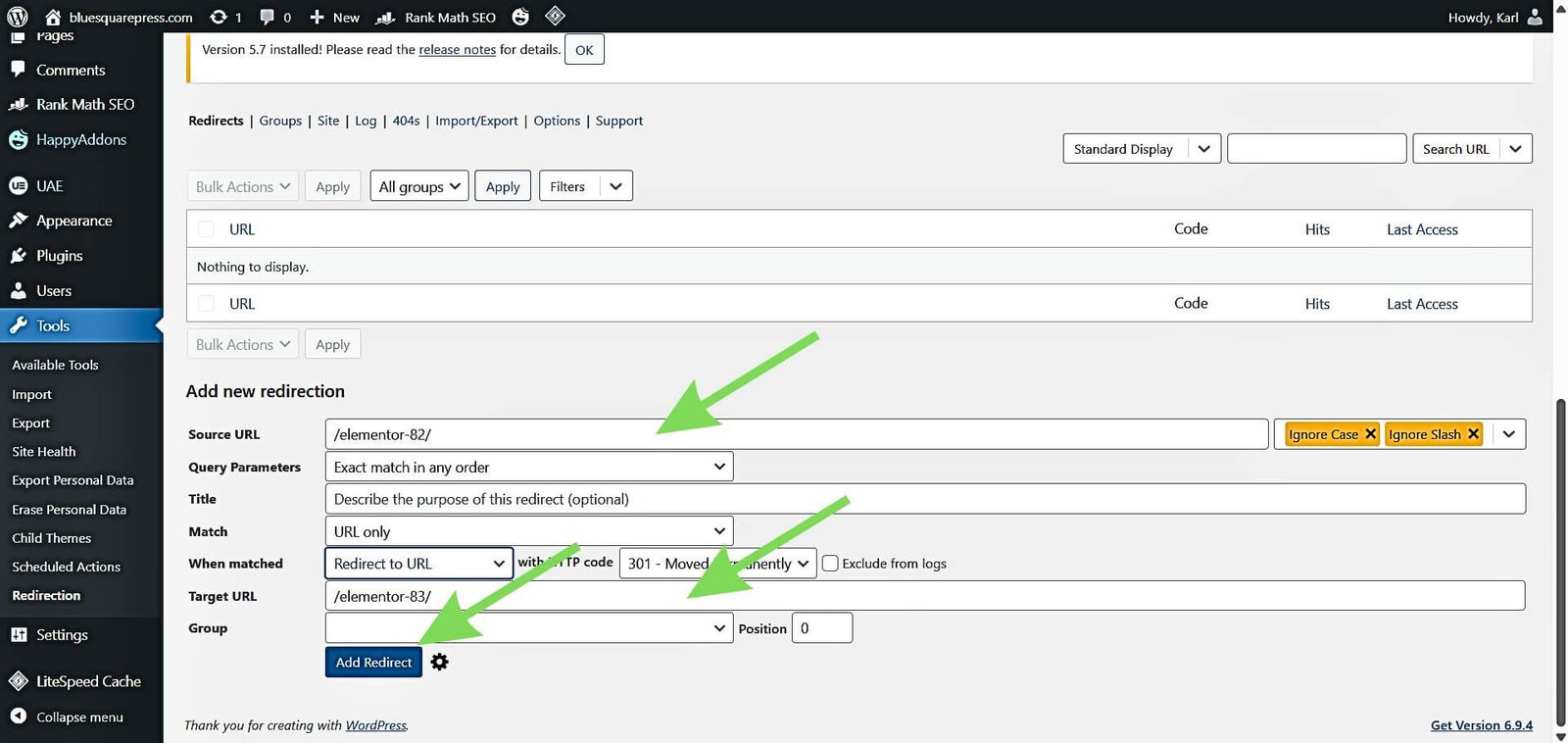

The fastest no-code way to set up 301 redirects in WordPress is to use a redirect plugin, then add your old URL, your new URL, and save the rule. A 301 redirect tells browsers and search engines that a page has moved permanently, which helps users land on the right content instead of a 404 page.
TLDR: Install a trusted WordPress redirect plugin, add the old URL in one field, add the new URL in another, and choose 301 Permanent Redirect. For example, if /old-services now lives at /services, the plugin sends visitors there without touching code. On a small business site with 18 broken URLs, fixing redirects could cut 404 visits by 60% to 80% if those pages still get traffic. Always test each redirect after saving it, because one typo can send users to the wrong page.
Why 301 Redirects Matter
A 301 redirect is not glamorous. It is plumbing. But when it breaks, everyone notices.
Maybe you renamed a blog post. Maybe you changed your permalink structure. Maybe you deleted an old landing page and built a better one. Without a redirect, visitors see a dead page. Search engines also lose the clean path between the old page and the new one.
That hurts. People bounce. Links from other sites stop working well. Old bookmarks become useless. Honestly, it feels like such a small setting should be harder to mess up, but WordPress can make URL changes weirdly easy to forget.
Use a 301 redirect when a URL has moved permanently. Do not use it for short promotions, seasonal pages, or temporary tests. For those, a 302 redirect usually makes more sense.
Best No-Code Methods for WordPress
You have a few simple options. The right one depends on your site size, your SEO plugin, and how often you change URLs.
- Redirect plugin: Best for most users. Easy, visual, and made for this job.
- SEO plugin redirect manager: Good if your SEO plugin already includes this feature.
- Hosting control panel: Useful for domain-level redirects, but less friendly for page-by-page redirects.
- Page builder or membership plugin settings: Sometimes useful, but not ideal as your main redirect system.
For most WordPress sites, a dedicated plugin is the cleanest route. It keeps redirects in one place. It also lets you search, edit, and remove rules later.
Method 1: Set Up 301 Redirects with a Plugin
This is the easiest method for non-technical users. A popular option is Redirection, but many SEO plugins also include redirect tools. The steps are similar in most plugins.
- Log in to your WordPress admin area.
- Go to Plugins > Add New.
- Search for Redirection or another redirect plugin you trust.
- Click Install Now, then Activate.
- Open the plugin settings from the WordPress sidebar.
- Find the section called Add New Redirect, Redirects, or similar.
- Enter the old URL in the source field.
- Enter the new URL in the target field.
- Select 301 Permanent Redirect.
- Save the redirect.
Use relative URLs when the redirect stays on the same domain. For example, enter /old-page instead of https://example.com/old-page. It keeps rules cleaner and reduces mistakes if your domain setup changes later.
Here is a basic redirect example:
- Old URL: /spring-sale-2023
- New URL: /offers
- Redirect type: 301 Permanent
After saving, open a private browser window. Type the old URL. You should land on the new page in a second or two. If you see a 404 page, the rule is wrong or caching is getting in the way.
Method 2: Use an SEO Plugin Redirect Feature
If you already use an SEO plugin, check whether it has a redirect manager. Some plugins include it in a paid plan. Others may offer a basic version. This can be useful because redirects and SEO tasks sit in the same area.
The process is usually simple:
- Open your SEO plugin menu in WordPress.
- Find Redirects, Redirect Manager, or Tools.
- Add the old URL.
- Add the destination URL.
- Choose 301.
- Save and test.
The catch is that some SEO plugins hide redirects behind a premium plan. Expect to waste time clicking through menus if you are using the free version and the feature is not included. It is annoying, especially when the button is visible but locked.
Method 3: Redirect Through Your Hosting Panel
Some hosting companies let you create redirects from the hosting dashboard. This can work well for large moves, such as redirecting one domain to another. It can also help if you cannot access WordPress.
Look for labels like:
- Redirects
- Domain Redirects
- URL Forwarding
- Site Tools
For page-level redirects, plugins are usually easier. Hosting panels vary a lot. One host may let you create a redirect in 20 seconds. Another may bury it four screens deep under domain settings. If you manage many URLs, that gets old fast.
When Should You Create a 301 Redirect?
Create a 301 redirect whenever an old URL has a clear new home. Do not redirect every deleted page to the homepage. That is lazy, and it gives users a poor experience.
Good cases include:
- You changed a page slug: /about-us became /about.
- You merged two articles: An older post now points to the stronger guide.
- You removed a product: The old product redirects to the closest replacement.
- You changed categories: A category URL was renamed or reorganized.
- You moved from HTTP to HTTPS: All old insecure URLs should point to secure versions.
Bad cases include redirecting unrelated pages, sending all errors to the homepage, or chaining five redirects together. A user who clicks a link about pricing should not land on your blog archive. That feels broken, even if the page loads.
How to Avoid Redirect Mistakes
Redirects look simple, but small errors create big headaches. Before you add a rule, copy the old and new URLs into a note. Check spelling. Check slashes. Check whether the page really exists.
Watch out for these common mistakes:
- Redirect loops: Page A redirects to Page B, while Page B redirects back to Page A.
- Redirect chains: Page A goes to B, then C, then D. Keep it direct.
- Wrong redirect type: Use 301 only for permanent moves.
- Final page is unpublished: The redirect works, but users still hit a dead end.
- Cache issues: Browser, plugin, or server cache may show old behavior.
If something acts strange, clear your WordPress cache. Then clear your browser cache or test in a private window. If you use a CDN, clear that cache too.
How to Check If Your 301 Redirect Works
Testing matters. Do not assume a saved rule is working.
- Open a private browser window.
- Paste the old URL.
- Press Enter.
- Confirm that the new page loads.
- Check that the address bar shows the correct final URL.
You can also use a redirect checker tool online. It will show whether the status is 301, 302, or something else. This is useful when your browser hides the technical details.
Keep a Simple Redirect Log
For small sites, a plugin list may be enough. For bigger sites, keep a spreadsheet. Add columns for the old URL, new URL, redirect type, date added, and reason.
This saves time later. If someone asks why /ebook redirects to /resources, you do not have to guess. You can check the log in ten seconds.
Final Tips
Set up 301 redirects as soon as you change URLs. Do not wait until traffic drops or customers complain. Use a plugin if you want the safest no-code path, test every redirect, and keep rules tidy.
A good redirect is invisible. Visitors click, land in the right place, and move on. That is exactly the point.

 By
By

 By
By